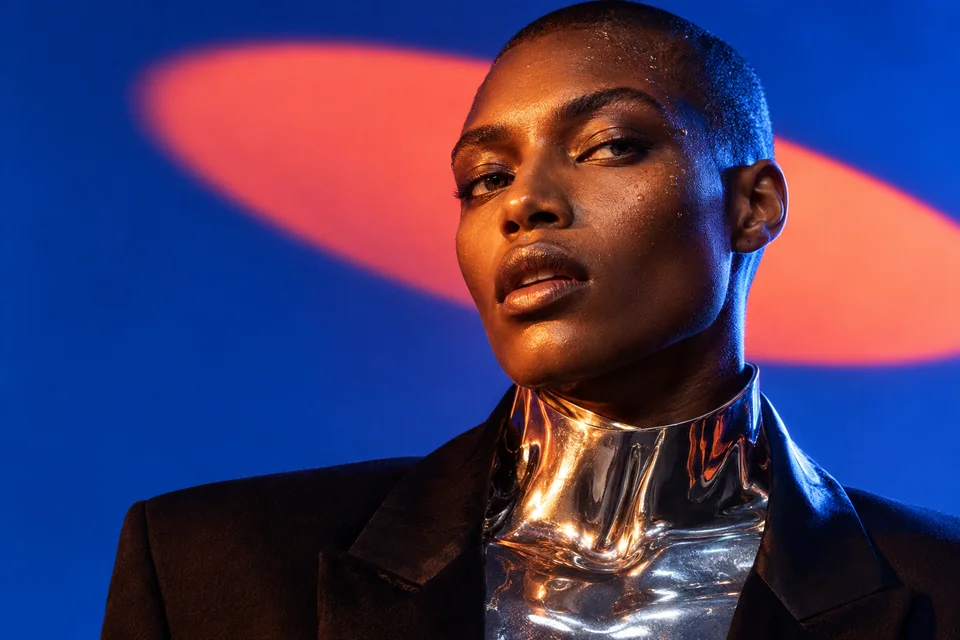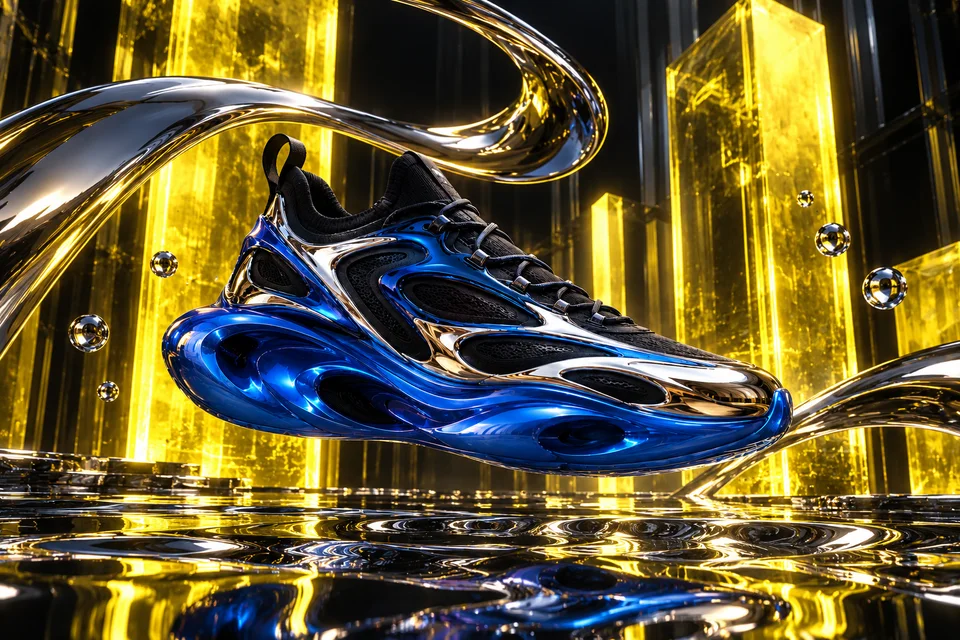
Give your character a move to follow.
A pose, a dance step, a gesture. Pair your character image with a movement video to create a new animation.
01 / Upload
A character image and a video of the movement to follow.
02 / Make it yours
The passage, motion method, orientation and sound.
03 / Download
A character video inspired by your chosen movement.
Start with a gesture.
A character image meets a filmed performance. Select the movement you want to guide your animation.
Choose your character
Choose an image that clearly shows your character and their pose.
Find the movement
Add the movement video and select the passage to follow.
Make it move
Choose the method, confirm the price and watch your character move.
Your character takes the floor.
One character, eight seconds of choreography. Watch Wan 3 bring the dance into a new scene.

02 / Dance reference
03 / Generated dance
Dance reference: Antoni Shkraba · Pexels
Keep creating, in one place.
Find the result in Media. Add it to a film in Studio, or download it.
- Media
- Studio
- Export
For a better result.
- Choose a video where the body stays visible. Hidden gestures and very fast movements are harder to follow.
- Check the face, hands and held objects. The character’s appearance and gestures can vary in the finished video.
How do the two methods differ?
Motion control uses a method dedicated to character movement. Video inspiration uses the clip as a general reference. The two methods do not reproduce movement in the same way.
Can I use a character from Character Builder?
Yes. Select a saved image from Media. If you have a sheet with several views, first choose the single image you want to animate.