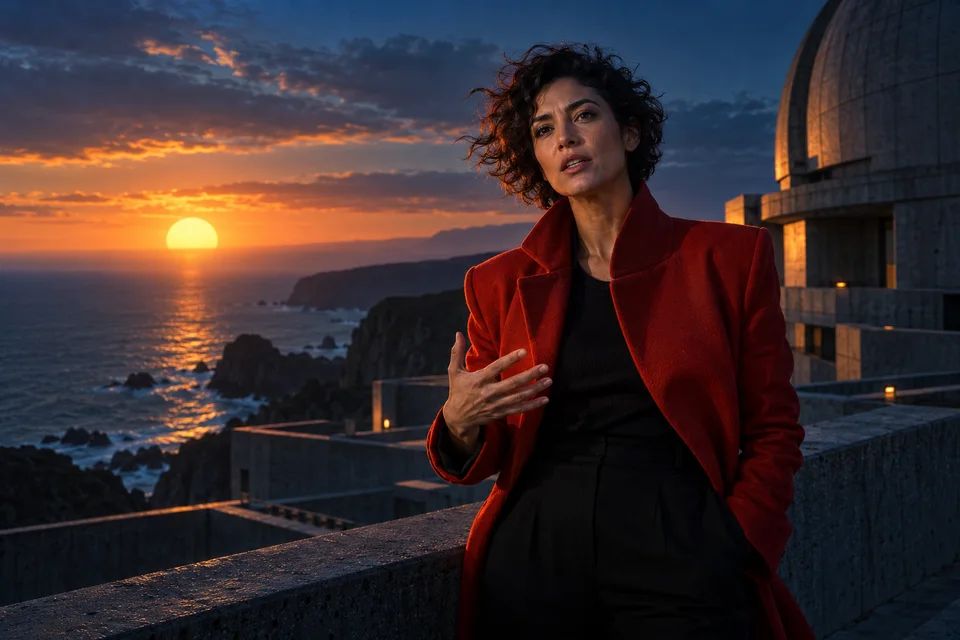
Make a portrait speak. Or give a video a new voice.
A face, a voice, a new line to deliver. Add your recording to a portrait or a face video and sync the lips to the words.
01 / Upload
A portrait or a face video, plus a voice recording.
02 / Make it yours
Photo or Video mode and the audio passage to use.
03 / Download
A speaking video with the voice you chose.
One voice. Two ways to begin.
Bring a still portrait to life or change the words in an existing shot. Your recording sets the pace.
Choose the face
Choose Photo for a still portrait, or Video for a face already in motion.
Add your voice
Add your voice recording and select the passage to deliver.
Review the performance
Confirm the price, then watch and listen to the new video.
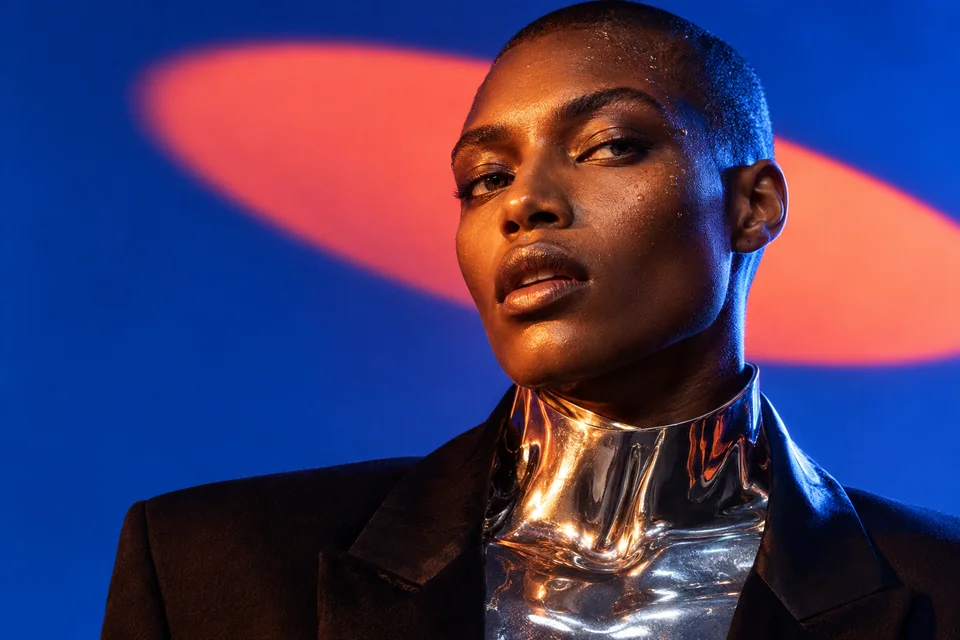
A still portrait finds its voice.
A portrait and an English voice recording, selected for a Wan 3 performance.

02 / The voice recording
10.37 s“I was going to take the last train tonight. Then you walked in, smiling like nothing had happened… and suddenly, leaving didn’t feel like such a good idea.”03 / The speaking portrait
Keep creating, in one place.
Find the result in Media. Add it to a film in Studio, or download it.
- Media
- Studio
- Export
For a better result.
- Use a clearly visible face and a clean voice recording. Check the lips and facial features in the finished video.
- In Video mode, select audio and video passages of equal length. The tool does not loop or speed them up to make them fit.
What is the difference between Photo and Video?
Photo animates a still portrait to make it speak. Video adapts the lips of a filmed face to your new recording.
Can I use a generated voice?
Yes. Select an audio file from your account or upload your recording. You choose the voice before starting the creation.